Sunday, March 27, 2022

Revit Snaps Settings

The snaps dialogue in Revit enables you to set which snaps points are active and set dimension increments displayed for both linear and angular dimensions, similar to the OSNAP settings in AutoCAD. The snap setting also displays all the keyboard shortcuts for each snap. You can use these shortcuts for a quick temporary override of the snaps.

To manage the Snap settings in Revit do the following:

  1. Go to the Manage tab panel.
  2. select the Snaps to open the snaps dialogue box.
  3. Select or deselect any desired snap points. Please refer to the attached Figure 1 below.


Figure 1.


Friday, March 25, 2022

Revit Snaps Shortcuts


Shortcuts Oject Snaps         Descriptions
  • SI       Intersections          Snaps to intersections.  
  • SE      Endpoint                Snaps to endpoint of an element or component.  
  • SC     Centers                  Snaps to the center of an arc.  
  • SO     Snaps Off               Disables all snap settings.  
  • SM     Midpoints               Snaps to to the midpoint of an element or component.  
  • SN      Nearest                 Snaps to the neaerest element or component..  
  • SP      Perpendicular        Snaps to perpendicular elements or components.  
  • SQ     Quadrants              Snaps to quadrant points.  
  • ST      Tangents                Snaps tangent to arc.   
  • SW     Work Plane Grid    Snaps to a work plane grid.  
  • SX      Points                    Snap to site points when editing points using the Move or Copy tool.  
  • Tab Key     Cycle through snaps      Cycles through the available snap options.  
  • Shift Key   Force Horizontal and Vertical    Force horizontal and vertical constraints.  

Thursday, December 27, 2012

Customize Revit keyboard Shortcuts

Just as I like to customize my AutoCAD commands I like to customize my Revit shortcut commands also. This makes it easier for me to remember the commands by assigning my own abbreviations. If possible, I like to use one letter, because it is easy and fast when typing. If you need to customize your Revit keyboard shortcuts do the following:

  1. Select the Revit logo on the upper left side of the ribbon and go to Options on the bottom right side of the pop up drop menu.
revit-options-button
    2. From the Options pop-up menu go to the User Interface tab and select Customize.
revit-user-interface-tab
   3. Look for the command name you want to change either by scrolling down on the right side bar  or type it on the search space area.
revit-keyboard-shortcuts

  4. Click on the command name first then type the new shortcut name on  Press new Keys area and then hit the Assign button.
  5. To remove the old command select it and click the Remove button.

Monday, July 23, 2012

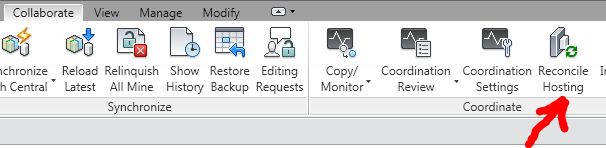
Reconciling hosting

Using face-hosted families is a very convenient way to attach your your components to 3D faces within a linked file.The problem that we encounter with this strategy is when the host delete the families from his file. Then, you no longer have reference to your attached components. At times you will see your families floating in your model. In Revit MEP starting in 2011 you can now address that issue in the "Reconcile Hosting Palette".


There you can see a list of all the unreconciled items with the active one in green. You can sort them by linked files and then categories or by categories and then the linked files.

To edit any item you need to right click it and then either delete it or pick a new host for it. Just keep in mind that there is only one option for rehosting when you do it right from the dialogue box. You can only rehost on a vertical face. So if your item  needs to be hosted on a horizontal host you need to locate and select that item in the model view.

Tuesday, December 28, 2010

Revit Keyboard Shortcuts

Revit Keyboard Shortcuts
  • AD      Edit-Group-Attach Detail
  • CG      Edit-Group-Cancel Group
  • CS      Edit-Create Similar
  • DE      Edit-Delete
  • WA    Modeling-Wall
  • WT    Window-Tile
  • WC    Window-Cascade
  • ER     File-Editing Request
  • RL     File-Reload Latest
  • RW    File-Reload Latest
  • MD    Edit-Modify
  • CO    Edit-Copy
  • RO    Edit-Rotate
  • AR    Edit-Array
  • MM   Edit-Mirror
  • MV    Edit-Move
  • RE     Edit-Resize
  • PP     Edit-Pin Position
  • PR     Edit-Properties
  • PS     View-New-Panel Schedule
  • UP     Edit Unpin Position
  • ZA     View-Zoom-Zoom All To Fit
  • ZR     View-Zoom-Zoom in Region
  • ZE     View-Zoom-Zoom To Fit
  • ZF     View-Zoom-Zoom To Fit
  • ZS     View-Zoom-Sheet Size
  • VG    View-Visibility/ Graphics
  • VP    View-View Properties